
User Interface
Archive Settings Manager Dialog Box
Use the Archive Settings Manager to archive events, trend logs, and extended trend logs on the Enterprise Server or Enterprise Central.
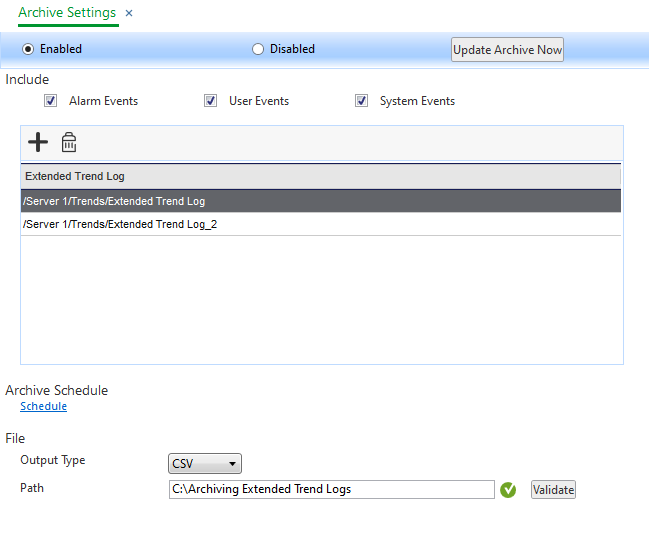
Number | Description |
Enabled | Select to activate the archiving function on the Enterprise Server or Enterprise Central. For more information, see Enabling the Archiving Function and Defining the Archive Folder . |
Disabled | Select to disable the archiving function on the Enterprise Server or Enterprise Central. |
Update Archive Now | Click to archive the selected historical data immediately. For more information, see Manually Creating an Archive . |
Alarm Events | Select to include Alarm events in the archive. |
User Events | Select to include User events in the archive. |
System Events | Select to include System events in the archive. |

| Click to add an extended trend log to the list. |

| Click to delete an extended trend log from the list. |
Extended Trend Log | Select the logs that you want to include in the archive. |
Archive Schedule | Click Schedule to configure a schedule for archiving. For more information, see Manual and Scheduled Archiving . |
Output Type | Select an output type for the archive. For more information, see Archiving Formats and Storage . |
Path | Type the path to the location where you want store the archive files. For more information, see Enabling the Archiving Function and Defining the Archive Folder . |
Validate | Click to validate that the path is valid. A green checkmark 
|
 Enabling the Archiving Function and Defining the Archive Folder
Creating a Scheduled Archive
Manually Creating an Archive
 Manual and Scheduled Archiving
Archiving Formats and Storage