earth_america
user_standard Log on
action_search_stroke
earth_america
Log on to rate and give feedback 1 2 3 4 5 Log on to rate
0
How to

How to


Products: Enterprise Server, Project Configuration Server, Virtual Project Servers
Functionalities: Basic Functionality
Product version: 1.8
8/20/2026

Creating a Scheduled Archive

You configure the Archive settings and schedule on the Enterprise Server to automate the archiving process.

Show More
action_close

You can generate an archive in two ways: manual or scheduled. Manual achiving is performed on an as-needed basis by a user. Scheduled archiving is an automated process performed in predefined intervals by the system.

Manual Archiving

​You can create a new archive manually at any time. The created archive contains data from the last time an archive was created to the time that you create the new archive. For example, if the system automatically generates an archive on the first day of every month, you can manually create an archive on the fifteenth to archive all the data between the first and the fifteenth. For more information, see Manually Creating an Archive .

Scheduled Archiving

You can set up the system to generate archives automatically at predefined intervals, such as weekly.

Archiving can be set up in the following intervals:

  • Weekly. Creates an archive on a weekly basis, Monday to Sunday.

  • Monthly. Creates an archive on a one-month basis, such as January.

  • Bi-monthly. Creates an archive on a two calendar-month basis: January-February, March-April, May-June, July-August, September-October, or November-December.

  • Quarterly. Creates an archive on a quarterly basis: January-March, April-June, July-September, or October-December.

  • Yearly. Creates an archive on a yearly basis, such as 2011.

Tip:

Use the Day (delay) function when you set up a new scheduled archive to ensure that all values of a log are included. The delay can be set from 1 to 7 days.

For more information, see Creating a Scheduled Archive .

About Trend Logs and Event Archives Creation

Regardless of the selected archiving method (manual or scheduled), the trend log and event archives are created at the same time.

To create a scheduled archive
  1. In WorkStation, on theTools menu, click Control Panel.

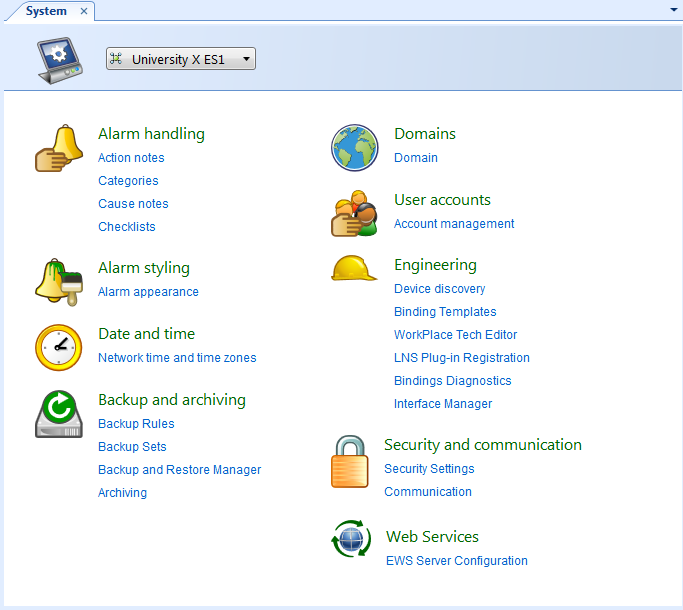
  2. On the Control Panel toolbar, select the Enterprise Server.

     
    action_zoom_plus_stroke
  3. Click Archiving.

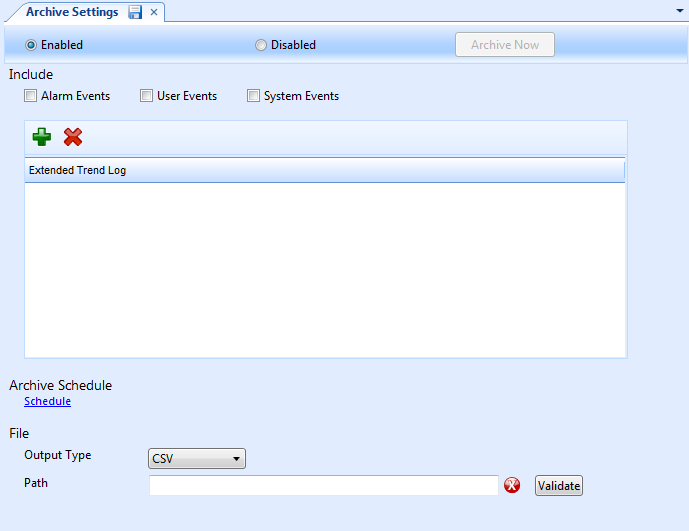
  4. Under Archive Settings, click Enabled.

     
    action_zoom_plus_stroke
  5. Select the events that you want to include in the archive:

    • Alarm Events: Select to include high priority or off-normal events (providing the alarms are pre-configured and active on the system).

    • User Events: Select to include user-initiated events, such as value overrides or configuration changes.

    • System Events: Select to include device-initiated events, such as time stamps.

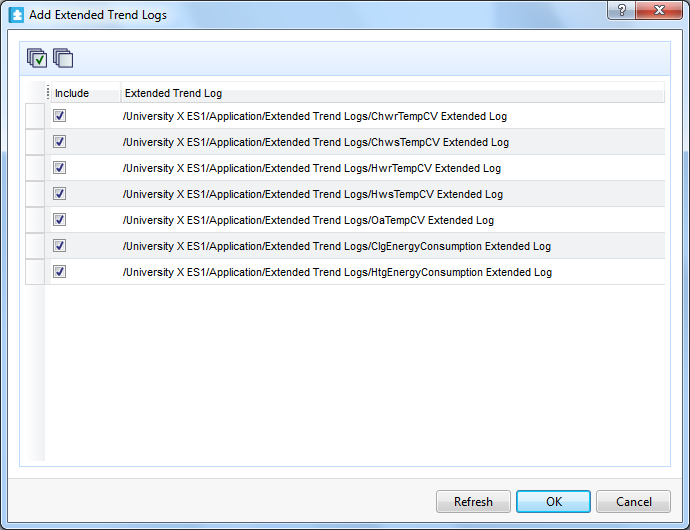
  6. Click the Add extended trend logs button

     
    action_zoom_plus_stroke
    to add extended trend logs to the archive.
  7. In the Include column, select the extended trend logs and click OK.

     
    action_zoom_plus_stroke
  8. Under Archive Schedule, click Schedule to create recurring exception and calendar events.

  9. In the Output Type box, select the format you want to use for the archive:

    • CSV: This output generates data separated by a delimiter.

    • XML: This output generates data using a standard internet protocol.

  10. In the Path box, type the path to an existing archive directory where you want to store the archive files.

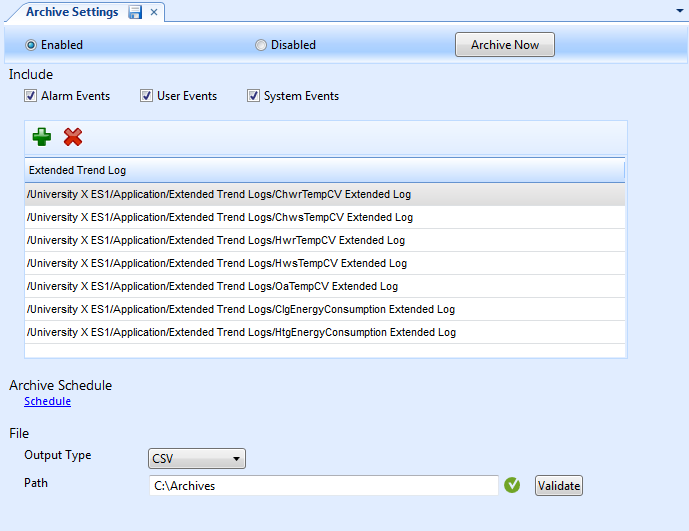
  11. Click Validate to confirm that the path is valid on the system.

    A check mark

     
    action_zoom_plus_stroke
    displays if the system successfully validates the path.
     
    action_zoom_plus_stroke
  12. When finished, click the Save button

     
    action_zoom_plus_stroke
    .
  • Manual and Scheduled Archiving
  • Archiving Formats and Storage
  • Archive Folders, Files, and Names
  • Adding a Weekly Event
  • Adding a Date Range Exception Event
  • Adding a Date Range Calendar Event
  • Adding a Calculated Exception Event
  • Removing Events from the Archive
  • Removing Trend Logs from the Archive
  • Archive Settings Icon
  • Add Extended Trend Logs Dialog Box